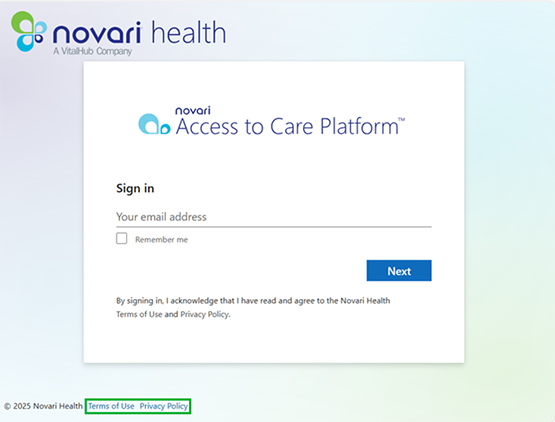
To use Novari eRequest, sign in with the account information provided by your organization.
- Use a supported web browser (Chrome is recommended, unless your organization uses another designated browser).
- Use the site address provided by your organization.
- Read the Terms of Use and read the Privacy Policy, located at the bottom left of the sign-in page.
- If your organization provides a desktop shortcut, you can use it instead of typing the address.
- Log in to help page Novari Health Resource Centre .
- Topics in this article
Sign in
- Enter your username (usually your email address).
- Select Next.
- Select Novari Health local account OR select a sign-in partner from the list provided if your organization has enabled partner sign-in.
- Enter your password and select Sign in.
Note: When you type your password, you may be able to show or hide it on screen, depending on your browser and configuration.
If you forget your password:
- On the sign-in page, select Forgot password.
- Follow the prompts to request a password reset.
- Open the password reset email and select the link.
- Create and confirm your new password.
- If you do not receive the email, check your junk or spam folder.
- If the email still does not appear, contact your system administrator or local support.
Signing out
Sign out when you finish work or step away from your workstation, especially on shared devices.
- Open your user menu.
- Select Logout (or the equivalent sign-out option shown in your configuration).
Managing your user profile
All users can view their own profile. The options you see and what you can change depend on your role and your organization’s configuration.

Open your profile
- Open your user menu.
- Select User Profile.
What you may see in your profile
- Person details
- Account details
- eRequest user settings
Person details
What you see depends on your role and local configuration.
You can:
- review your name and contact details
- update contact information, such as phone number or extension
Note: Some information may be read-only and can only be changed by an administrator.
Account details
From the account details area, you may be able to:
- see your last sign-in time
- view your assigned roles
- see whether a partner sign-in option is enabled
- see whether you are identified as a health information custodian
- change your password
eRequest user settings
Note: You see these options only if your role and configuration include eRequest user settings.
If eRequest user settings are enabled for your account, you may be able to:
- turn side-by-side viewing on or off
- enable inbox auto-return
- manage fax templates (for example, add, rename, or update templates)
- If you do not see these options, your role or configuration may not include them. Contact your system administrator if you believe you should have access.
General overview of Novari eRequest
In Novari eRequest, a referral is the item that moves through the workflow. Referrals move through a series of states as work is completed. Each state affects where the referral appears and what actions are available.
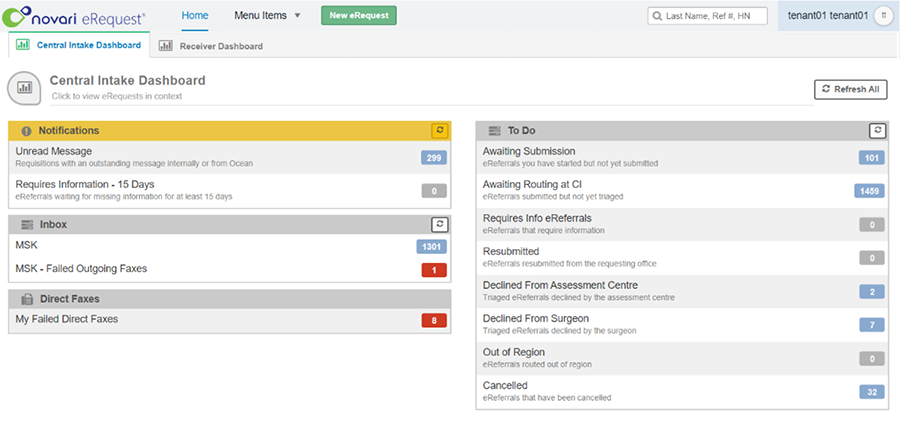
Dashboards
Dashboards show referrals that are relevant to your role. You may see one or more dashboard tabs. What you see depends on your assigned roles and your organization’s configured pathways and services.
Buckets
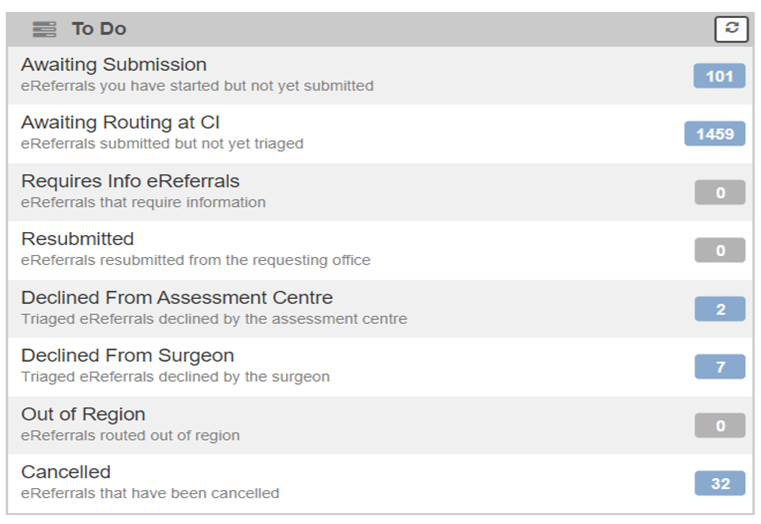
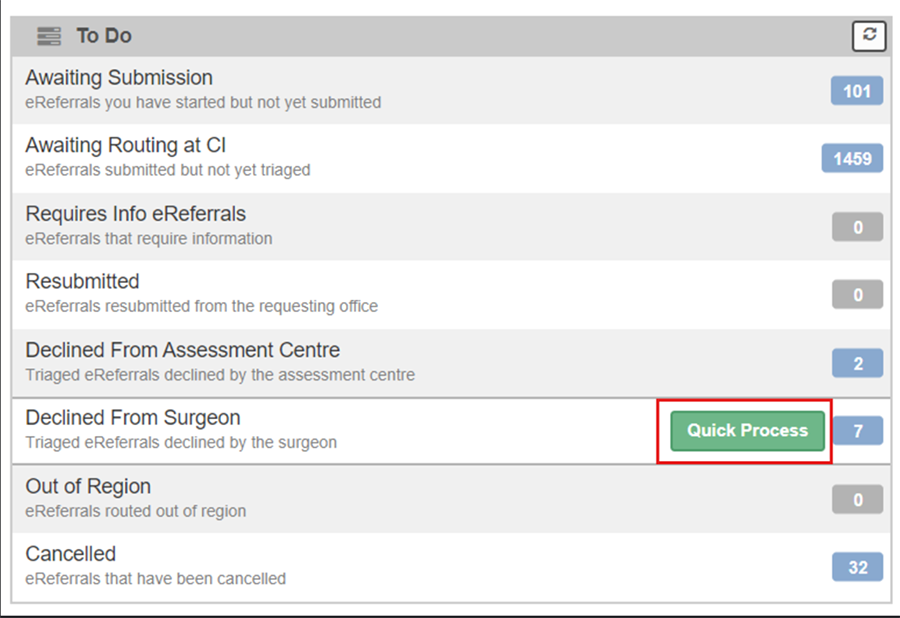
Each dashboard is divided into buckets. Buckets group referrals by state or required action. The number next to each bucket shows how many referrals are currently in that bucket.
Referral states
Referral states show where a referral is in the workflow. The current state appears near the top of the referral. States help control where a referral appears, which actions are available, and how downstream systems treat the referral.

Referral locking
When you open a referral, the system locks it to prevent conflicting changes.
- Green lock: You can edit the referral.
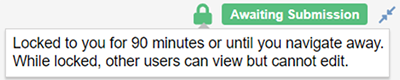
- Red lock: Another user is editing the referral or Doc AI is processing an incoming referral. You can view it only.

The system releases the lock when you leave the referral or after a period of inactivity.
A referral unlocks when:
- you navigate away from the referral, or
- a set period passes with no activity (for example, 90 minutes, depending on configuration)
Note: If a browser tab closes unexpectedly, the system releases inactive locks after the configured time. Administrators may be able to override locks if needed, based on local procedures.
Fields
Fields contain the patient, clinical, and workflow information needed to process a referral. The fields you can see or edit depend on your role and your organization’s configuration.
Required fields are marked with an asterisk (*). You must complete all required fields before the referral can move to the next workflow state.
Common field types include:
- Text fields
- Date fields
- Checkboxes
- Dropdowns
- Yes/No selections
Note: If you are unsure why a field is required or how it is used, follow your local process or refer to the full Novari eRequest guide.
Accordions
Accordions divide the referral into sections so you can review or enter information one area at a time. What appears in each accordion depends on your role, the referral’s current state, and your organization’s configuration.
Accordions may:
- Open automatically when a workflow step requires your attention.
- Expand or collapse when selected.
- Be read-only if your role does not allow editing.
- Display only the fields relevant to the referral’s current workflow stage.
Actions
Actions are the options available to move the referral through the workflow. The actions you see depend on your role, the referral state, required fields or approvals, and your site configuration.
Common examples of actions include:
- Moving the referral forward to the next state.
- Sending a communication or fax.
- Requesting missing information.
- Recording a delay.
- Completing or closing the referral, if authorized.
- Actions appear near the top of the referral and change as the referral progresses.
Filters
Filters let you narrow the list of referrals so you can focus on items that match specific criteria, such as state, request type, date range, or location.

Create and save a filter
- In list view, open the filter menu.
- Select the criteria you want to filter by.
- Apply the filter and review the results.
- Save the filter if you plan to use it again, and give it a clear name.
Apply a saved filter
- Open the filter menu.
- Select the saved filter.
- Review the list to confirm it matches what you expect.
Note: Saved filters are tied to your account. What you can filter by may vary based on your role and configuration.
Quick process
Quick Process lets you work through referrals one at a time without returning to list view after each referral.
When you use Quick Process, the system:
- Opens the next referral in the bucket.
- Skips any referral that is locked by another user.
- Continues until there are no more referrals to process in that bucket.

Start quick process
- Open the bucket you want to work in.
- Select the option to start Quick Process (if enabled in your configuration).
- Work through each referral as it appears.
- Move the referral forward or complete the required action.
- Exit Quick Process when you are finished.
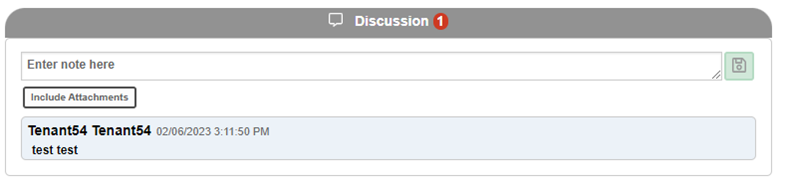
Discussion
The Discussion area allows authorized eRequest users to communicate within a referral.
It can also be used to communicate with the referring provider via Ocean eReferral Network.
- Open the referral.
- Scroll to the Discussion section at the bottom.
- Type in the Enter note here field (you can resize this box).
- Click the green save icon.
- Your note will display with your username, date, time and message.
Note: Hover over your saved note and click the envelope icon to mark it as unread and it will show the notification. The Discussion header will show a red unread count.
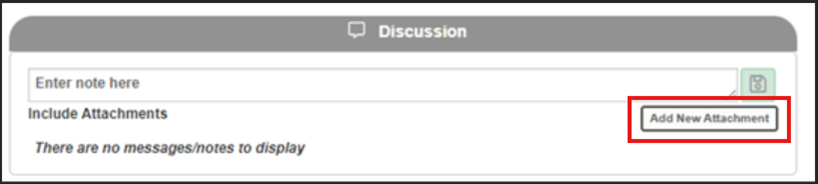
Attachment in discussion
- Select Add New Attachment.
- Choose Upload from file and select the file you want to add.
- The file will appear in the Attachments tab and in the Discussion thread.
- Add a note and mark it unread if you want to notify others
External requests (Inbox)
An external request is a referral that starts outside Novari eRequest. External requests may be received through electronic fax, electronic referral from another system, or a scanned or uploaded document.
Note: Your organization may have one or more inboxes for external requests. Each inbox shows key details such as reference number, urgency, request date, and request type.
Process an external request
When you open an external request, you can review the pages and decide what to do next. Depending on your role and configuration, you may be able to:
- Create a new referral.
- Attach the request to an existing referral.
- Move the request to another inbox.
- Reject, dismiss, or mark the request as junk.
Available actions for external requests
Available actions vary by configuration, but may include:
- Updating urgency.
- Moving to another inbox.
- Removing pages.
- Reordering pages.
- Rotating pages.
- Splitting the request into separate items if it contains more than one referral.
Use these actions to organize the request before you create a referral or attach it to an existing one.
Create a referral from an external request
Note: Button labels and available actions reflect the standard Novari eRequest experience. Exact options may vary by role and local configuration.
- Open the external request from the appropriate inbox.
- Review the pages to confirm they belong to the same referral.
- Select the option to process the request.
- Choose the option to create a new eRequest.
- Search for and attach the requesting provider.
- Create the referral.
- Attach the patient.
- Complete all required fields.
- Move the referral forward according to your local process and your role permissions.
Creating a referral brings the external information into the referral workflow so it can be routed and managed through the standard process.
Reject, dismiss, or mark as junk
Use Reject or Dismiss when an external request cannot be processed, based on your local criteria.
- Open the external request from the appropriate inbox.
- Select the option to process the request.
- Choose Reject or Dismiss.
- Select a reason from the list, if required.
- Confirm or update fax details if prompted.
- Complete any mandatory fields.
- Add notes if needed for local documentation.
- Confirm the action.
Note: If the request is marked as Junk, no fax-back is sent. The request will then be listed as Dismissed within the inbox.
Note: Rejected, dismissed, and cleared requests remain available for a defined period before they are removed from filtered views, depending on configuration.
Split an external request
Use Split Pages when one document contains more than one referral.
- Open the external request.
- Select Split Pages.
- Enter page ranges for each referral.
- Confirm the split.
- Important: Include all pages from the original document before you confirm
After the split is completed, each new request appears as a separate entry in the inbox.
Important: Confirm that you included all pages from the original request in one of the new requests before you confirm the split.