Use the workflow tabs to find the right queue.
Common workflow tabs
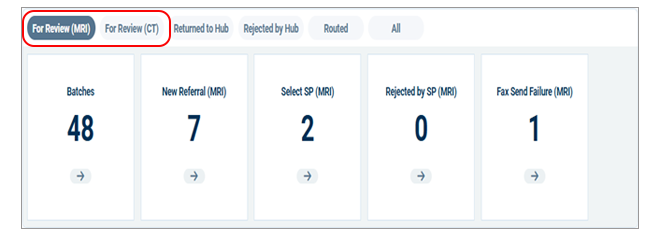
For Review tab (MRI/CT)
The CI Hub sends referrals here when automated checks finish and a person needs to confirm or correct something.
From this tab, you may see these queues:
- Batch review [Batches]
Review and fix how the system split a multi referral fax.
- Review new referral [New Referral]
Confirm extracted data, fix errors, and decide whether to proceed or reject.
- Select service provider [Select SP]
Confirm or change the recommended imaging site before you send the referral.
- Provider rejected [Rejected by SP]
Work referrals a service provider returned for non-clinical reasons.
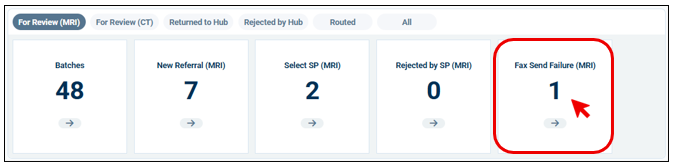
- Fax send failure [Fax Send Failure]
Follow up when the system cannot deliver an outbound fax after retries.
Select a queue/tile to open the worklist.
Locked referrals
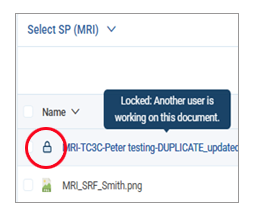
You may see a lock icon when another user has the referral open.
What you can do
- Hover over the file name to see the lock message.
- Open the referral to view it as read only.
- If your role allows it, select Steal Lock to take over the referral.
Use Steal Lock only when you must continue work and you cannot reach the user who holds the lock.

Batch review (splitting multi referral faxes)
- Open Batch review [Batches].
- Confirm the system split:
- The right pages are grouped together.
- Each referral belongs to the correct patient.
- No pages are missing or in the wrong referral.
- Fix errors by moving pages to the correct referral (drag and drop).
- Select Submit Batch.
Review new referral [New Referral]
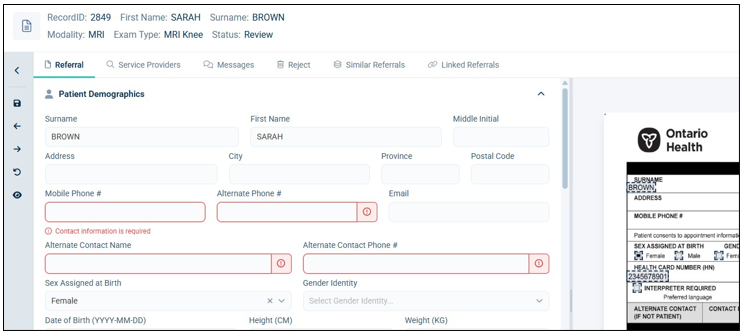
Use this queue to confirm that the CI Hub captured the referral correctly.
The CI Hub may highlight fields when it cannot read the fax clearly (for example, poor handwriting or image quality). You must confirm those fields.
- Open Review new referral.
- Compare the extracted fields to the fax image.
- Correct any fields that are wrong or incomplete.
- Select Submit to move the referral to the next step (usually Select service provider [Select SP]).
Important: Fields that need verification are not the same as a missing required referral. If the referral is missing required information, reject it (see Reject a referral).
Reject a referral
Reject a referral when you cannot process it (for example, the referral is incomplete, a confirmed duplicate, or an unsupported request).
Common reject reasons
- Incomplete referral (missing required information)
- Duplicate referral (system flagged and staff confirmed)
- Incorrect or unsupported request
To reject
- Open the referral.
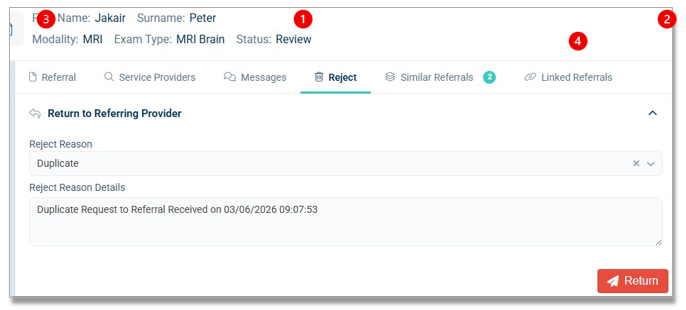
- Go to Reject.
- Select a Reject reason. Add details if needed.
- Select Return to send the rejection back to the referring provider by fax.
Similar referrals (duplicate check)
Use this tab to review potential duplicates flagged by the system.
- With the referral open, select Similar referrals.
- Open a potential match:
- Select View Document to open it in a new tab, or
- Select Compare Document to compare side by side.
- Decide whether the referral is a true duplicate.
- If it is a duplicate, reject the correct referral using Reject.
- Usually, keep the referral that has already been processed and reject the newer one.
Tip: Check the document number(s) in the viewer so you reject the right referral.
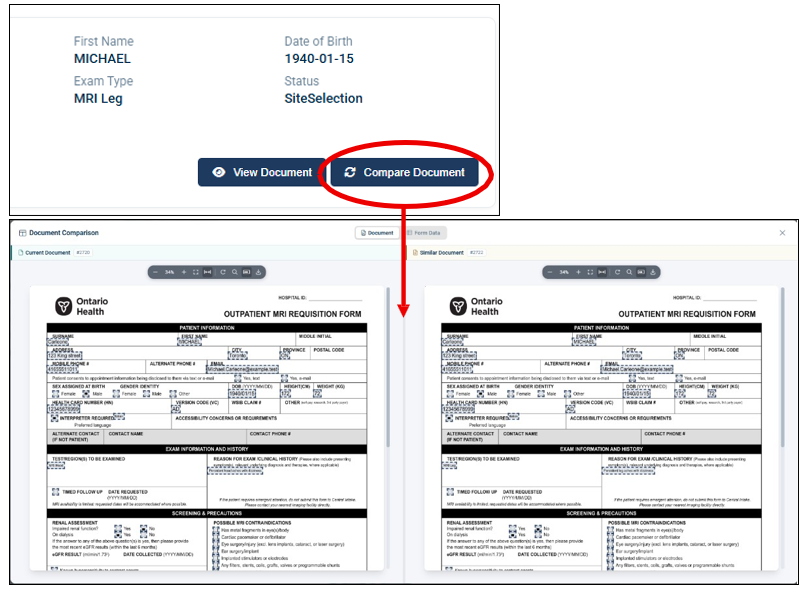
Sync scroll (in Compare Document)
Use this feature to scroll both referrals together while you compare form data.
- In the comparison view, select Form Data.
- Turn on Sync Scroll
 .
.
Linked referrals (split or link)
Use this tab when one fax contains more than one referral scenario, such as:
- Multiple exams that must go to different sites
- Referrals you must split into separate work items
- One “parent” referral that must track several “child” referrals
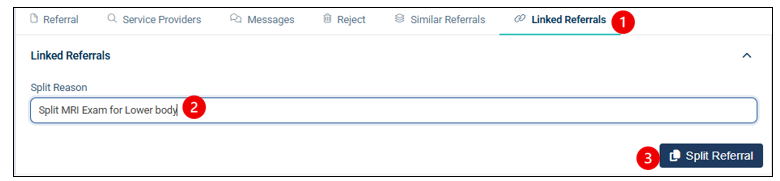
To split a referral
- Open the referral.
- Select Linked referrals. Enter a clear Split reason (example: “Split MRI exams to different sites”).
- Select Split Referral.
The CI Hub creates a new linked referral and sends it to Review new referral [New Referral] for review and routing.
Select service provider [Select SP]
Use this queue to confirm or change the recommended imaging site before you send the referral.
- Open Select service provider [Select SP].
- Select a referral from the list.
- In the Referral Viewer, open Service Providers.
- Confirm the recommended provider meets the referral needs (clinical and logistical).
- Select Submit to route the referral.
Override the recommended provider
Override the recommendation when you must choose a different site (for example, service availability, specialization, accessibility, or operational routing rules).
- In Service Providers, select the provider you want.
- Review the provider details (if the profile opens).
- Select Select Provider to confirm your choice.
- Select Submit to send the referral.
Note: Selecting a provider does not send the referral. The referral sends only when you select Submit.
Service provider filters
Use filters to narrow the provider list.
- Open Service Providers.
- Select Filters.
- Set the filters you need.
- Select Apply Filters.
Route to another regional hub
Use this option when no suitable provider in your region can perform the exam.
- Open Referral.
- Go to the Site Selection section.
- Select a hub in Route to Regional Hub (Central, East, Northeast, Northwest, Toronto, West).
- Select Submit.
Provider rejected (non-clinical) [Rejected by SP]
- This queue contains referrals a service provider returned for non-clinical reasons (for example, service not available).
- Open the referral from Provider rejected [Rejected by SP].
- Review the rejection reason.
- Select a new provider or route to another hub (if required).
- Select Submit.
Fax send failure [Fax Send Failure)
The system retries outbound faxes automatically (up to 3 attempts, 2 minutes apart). If the fax still fails, the CI Hub sends the referral to this queue.x
What to do
- Try to resend the fax.
- Confirm the recipient fax number (if applicable).
- Contact the recipient if they report fax issues.
- Select a different provider and reroute if needed.
To resend
- Open Fax send failure [Fax Send Failure].
- Select Resend Fax.
Note: After repeated failures, the system may move the item back to For Review [For Review (MRI)] / [For Review (CT)] and prompt you to confirm the fax number or reroute.
Return to Hub tab
Use this tab to view referrals that service providers returned to the hub.
You may see:
- Non-clinical queue: Returned for non-clinical reasons and needs rerouting.
- Clinical / FYI list: Returned for other reasons (historical/reference).
Use search and filters to find the referral you need.
Rejected by Hub tab
Use this tab to view referrals the hub rejected (automatically or manually).
Lists may include:
- Auto rejected
- Incomplete
- Other (duplicates, incorrect modality, not a referral, etc.)
Routed tab
Use this tab to view referrals the system successfully sent:
- To a service provider.
- To another regional hub.