Use this guide to complete day-to-day work in the Central Intake Hub (CI Hub). It explains how to sign in, find work, review referrals, and manage common exceptions.
Access and sign in
The CI Hub is browser-based. You do not install anything.
Open a browser (Chrome, Edge, or Firefox).
Navigate to the site URL.
Bookmark the page if you use it often.
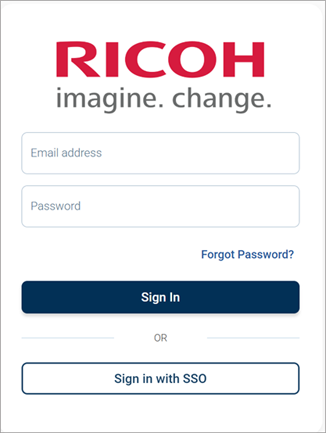
Enter your email address and password, then select Sign In.
Sign in page
Reset your password (Forgot Password?)
Use this option if you already have a CI Hub account.
On the sign-in page, select Forgot Password?
Enter the email address linked to your CI Hub account.
Open the password reset email and follow the instructions.
Account help (Help Desk)
Contact the Help Desk if you:
Cannot sign in.
Cannot access a queue or tab you need.
Do not receive activation or password reset emails.
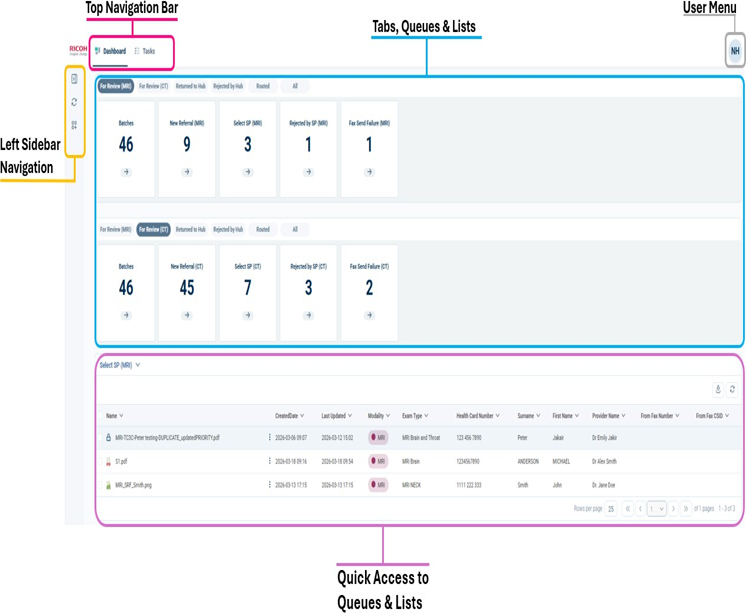
Use this queue to confirm that the CI Hub captured the referral correctly.
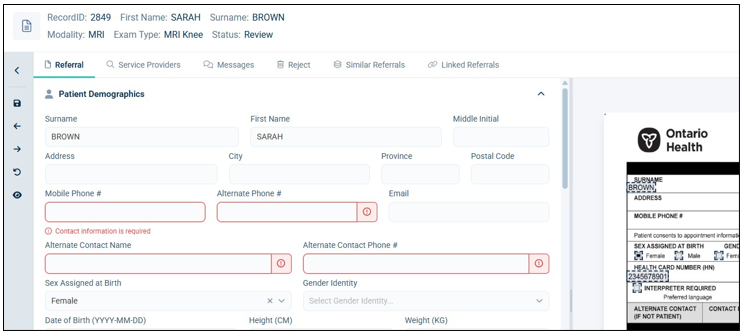
The CI Hub may highlight fields when it cannot read the fax clearly (for example, poor handwriting or image quality). You must confirm those fields.
Open Review new referral.
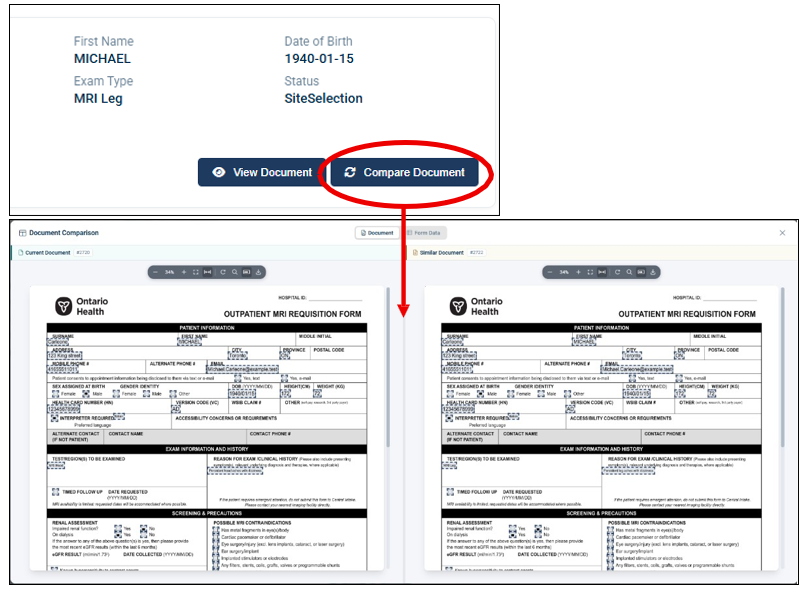
Compare the extracted fields to the fax image.
Correct any fields that are wrong or incomplete.
Select Submit to move the referral to the next step (usually Select service provider [Select SP]).
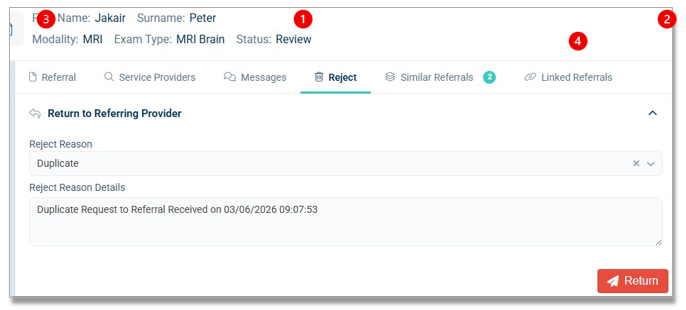
Important: Fields that need verification are not the same as a missing required referral. If the referral is missing required information, reject it (see Reject a referral).
Use this queue to confirm or change the recommended imaging site before you send the referral.
Open Select service provider [Select SP].
Select a referral from the list.
In the Referral Viewer, open Service Providers.
Confirm the recommended provider meets the referral needs (clinical and logistical).
Select Submit to route the referral.
Override the recommended provider
Override the recommendation when you must choose a different site (for example, service availability, specialization, accessibility, or operational routing rules).
In Service Providers, select the provider you want.
Review the provider details (if the profile opens).
Select Select Provider to confirm your choice.
Select Submit to send the referral.
Note: Selecting a provider does not send the referral. The referral sends only when you select Submit.
Service provider filters
Use filters to narrow the provider list.
Open Service Providers.
Select Filters.
Set the filters you need.
Select Apply Filters.
Route to another regional hub
Use this option when no suitable provider in your region can perform the exam.
Open Referral.
Go to the Site Selection section.
Select a hub in Route to Regional Hub (Central, East, Northeast, Northwest, Toronto, West).
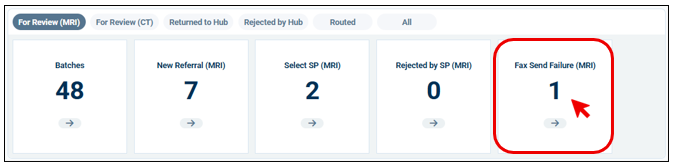
The system retries outbound faxes automatically (up to 3 attempts, 2 minutes apart). If the fax still fails, the CI Hub sends the referral to this queue.x
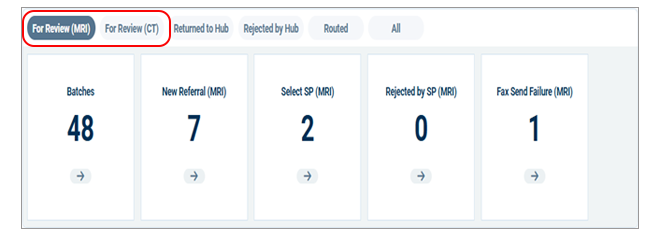
Fax Send Failure tile
What to do
Try to resend the fax.
Confirm the recipient fax number (if applicable).
Contact the recipient if they report fax issues.
Select a different provider and reroute if needed.
To resend
Open Fax send failure [Fax Send Failure].
Select Resend Fax.
Note: After repeated failures, the system may move the item back to For Review [For Review (MRI)] / [For Review (CT)] and prompt you to confirm the fax number or reroute.

 .
.