Routing tags help you filter routing choices for referrals in the Awaiting Routing status. Tags appear only when your Novari eRequest administrator has created and assigned them.
Accessing Tags
- Open a referral in Awaiting Routing.
- Expand the Routing accordion (e.g., Central Intake Routing).
- The screen will show Select Tags… and a Tags column when tags exist.
Ways to filter by tags
- Scroll & Select Tags
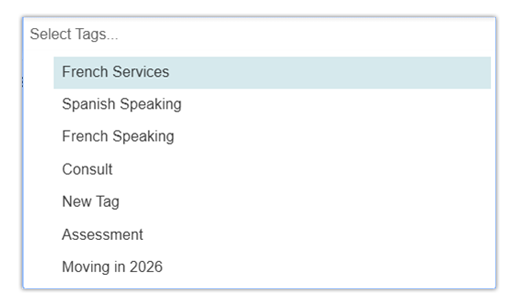
- Click Select Tags….
- Pick tags one at a time from the list.
- Selected tags appear in the box and are removed from the list.
- Remove a tag by selecting its x.
- Search for Tags
- Click Select Tags….
- Type letters to filter tag options.
- Select the desired tag(s) from the filtered results.
- Select from the Tags Column
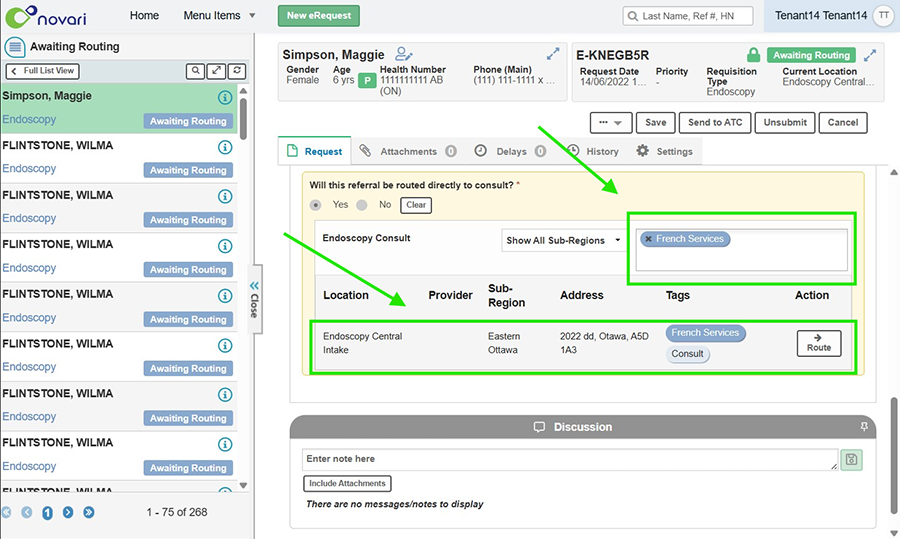
- Click a tag directly beside a location in the Tags column.
- The tag will be added automatically to Select Tags….
Filtering with Multiple Tags
- You can select multiple tags.
Locations matching all selected tags appear first, followed by those matching fewer.