If faxing is enabled in your configuration, you can send a fax from a referral.
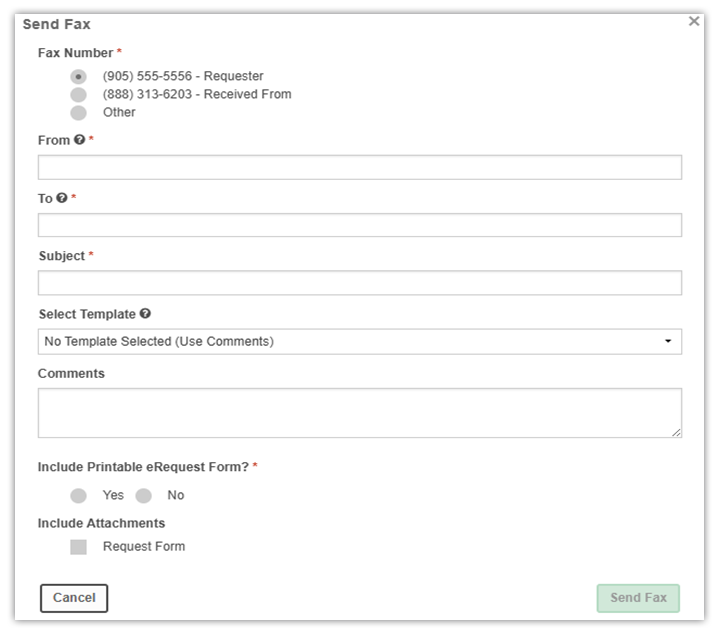
Send a fax
- Open the referral.
- Select the option to send a fax.
- Review or enter the fax number or numbers.
- Complete any required fields.
- Select a fax template, if needed.
- Choose the attachments to include.
- Send the fax.
- Sent faxes appear in the referral’s communication or history area, depending on configuration.
FAX templates
Fax templates let you reuse standard wording when you send faxes from referrals. Templates are usually specific to each user.
Depending on your role and configuration, you may be able to:
- Upload templates (for example, Word documents).
- Rename templates.
- Edit templates.
- Delete templates.
Templates can include autofill keys that insert referral and patient information in the fax, based on the data in the referral.